

Visual
Visual edits pages without code. The left panel lists sections, the center is a live preview of your store, and the right panel edits the selected section.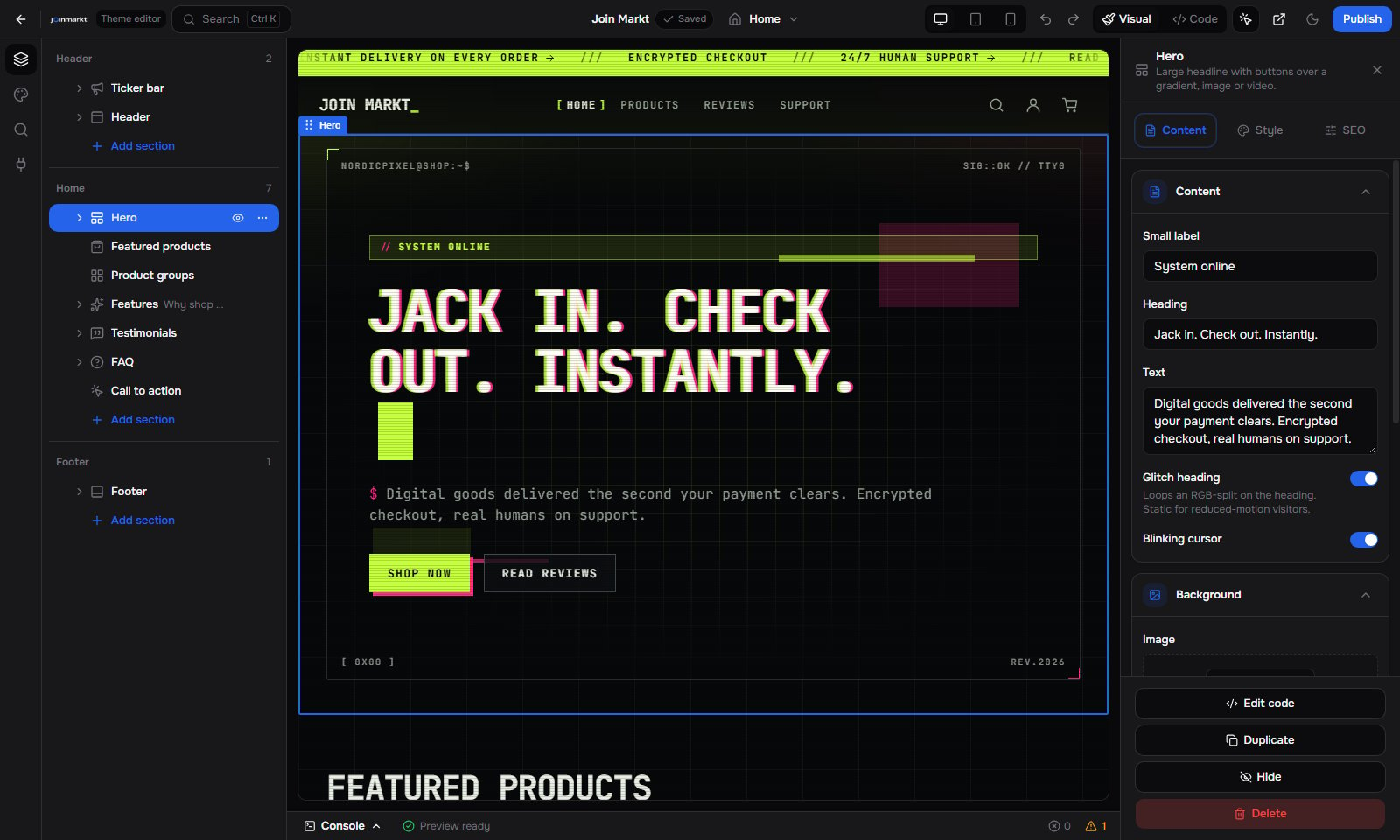
Visual builder — sections, live preview, and settings
- Pick a page from the page picker in the top bar. It lists built-in pages and your custom pages, and has Add page and Edit page code at the bottom.
- Add a section from the sections panel. Only sections allowed on the current page are offered, and a section at its
limitcannot be added again. - Reorder sections and blocks by dragging them in the sections panel.
- Nest menu links in sections that allow nested blocks: drag a link to the right to put it under the link above, to the left to take it out.
- Hide a section or block to keep it in the theme without showing it.
- Edit settings in the side panel. Select a section or block in the panel or click it in the preview. Section style (width, spacing, background, text color, corner radius, entrance animation) and search settings (anchor, hide from snippets) sit under their own headings.
- Theme settings holds the global colors, fonts and other values from
config/settings_schema.json.
Ctrl/Cmd + Z) and redone (Ctrl/Cmd + Shift + Z). Ctrl/Cmd + K searches sections, settings, pages and actions, and ? lists every shortcut.
Code
Code shows every theme file in an explorer, the editor in the middle, and the same live preview on the right.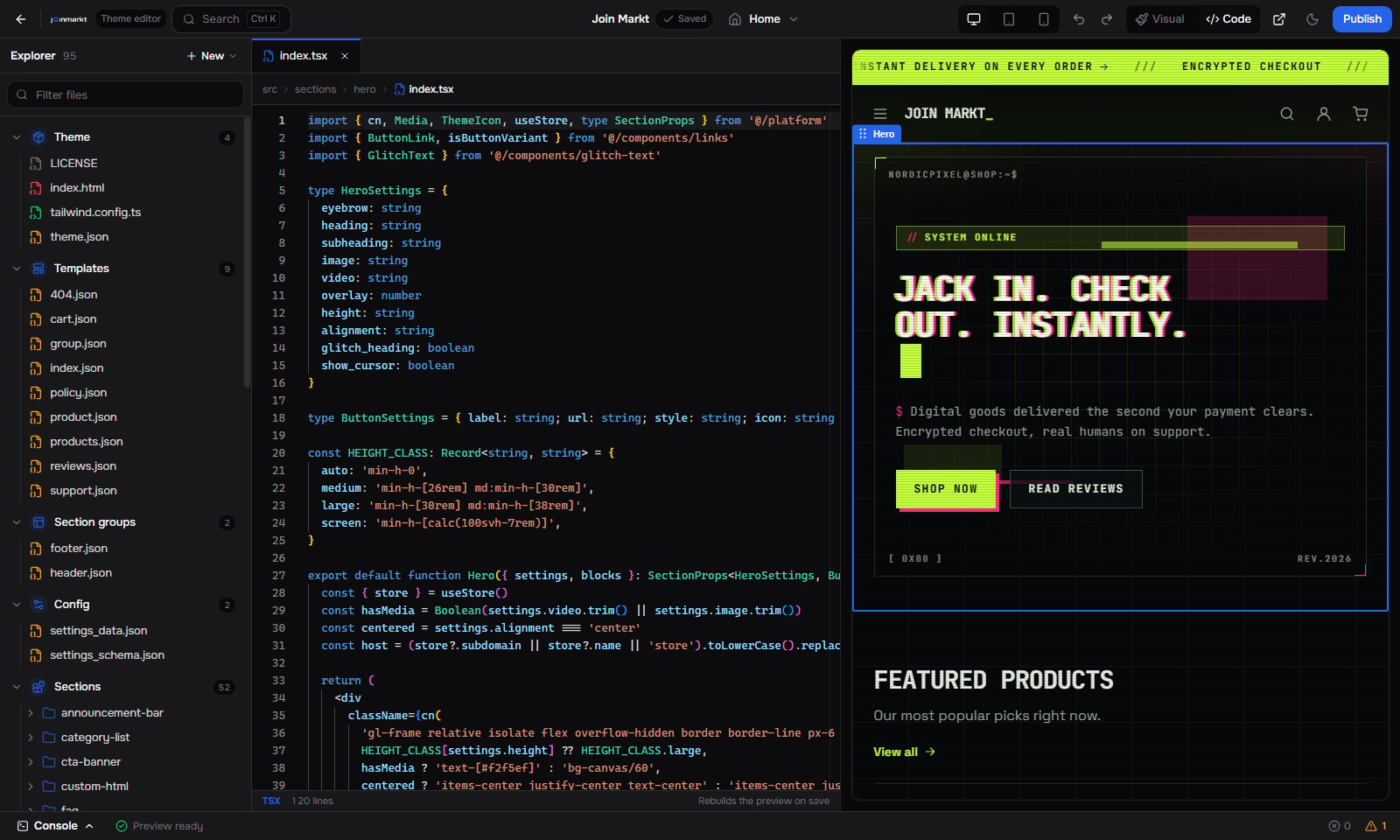
Code builder
Explorer
Explorer
Drag and drop files and folders to move them. Right-click a file for Open, Copy path, New file here, Rename and Delete, plus Compare with theme when a theme update has a newer version of it. Right-click a folder for New file here and New section. Files under
src/platform/ are read-only: they cannot be moved, renamed or deleted.New section
New section
Creates a ready section for your theme’s runtime:
schema.json plus index.tsx, index.liquid or index.ts. Start from Heading and text or With repeatable items. The result is the same code shown in Runtimes.Edit page code
Edit page code
Opens the current page’s template file, for example
templates/index.json, from the page picker or by right-clicking the preview.Page file bar
Page file bar
When a template or group file is open, a bar above the editor points to the design files of the sections it uses, so you can jump from a page to the code that draws it.
Errors in the editor
Errors in the editor
Problems found by the theme check show on the line they belong to, with the message next to it. The same list appears when you publish.
Compare with theme
Compare with theme
When a theme update has a newer version of a file you changed (a pending update choice, or an earlier Keep mine), Code marks it and offers Compare with theme. It shows your file next to the theme version, side by side. Choose Keep mine or Restore theme version.
Preview
The preview is a real build of your theme with your store’s products, groups and settings.- Edits to settings update the preview right away. Code changes rebuild it.
- Click an element in the preview to select its section or block. Right-click for more actions, such as Edit page code.
- Product and group pages preview with your first product or group.
- Sale popups and live product stats never show in the preview, and preview visits are never counted.